

FAQ for Students
Logging in to OLAT
If you have a HRZ account:
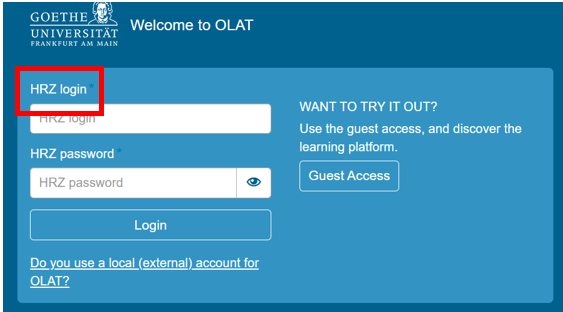
- Check that you are on the correct login page. It should say HRZ login in the login field.
- If not, click the link Do you use a HRZ account? to switch to the correct page.
- Check whether you are using the correct password. Try logging in to other HRZ services, e.g. webmail (https://webmail.server.uni-frankfurt.de). If logging in also fails here, please contact the Goethe-Card Service to request a new password.
- Check whether you mistyped your username. Your HRZ username contains only lower-case letters, e.g. s1234567 or janedoe.
- Prevent your web browser from saving your login credentials. If you mistype your password and/or your username and save them, your browser will always fill in the wrong credentials without you noticing. See your browser's manual on how to delete saved usernames and passwords.
If you have a local/external account instead of a HRZ account:
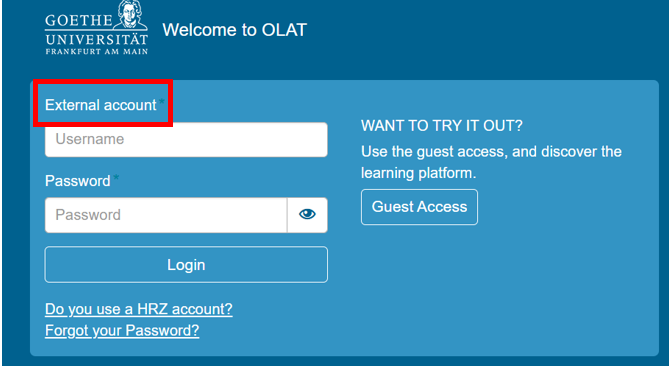
- Check whether you are using the correct login screen.
- If not, click Do you use a local (external) account for OLAT? on https://olat-ce.server.uni-frankfurt.de to switch login screens. Trying to log in with a local account on the HRZ login screen will result in an error message.
To find a course in OLAT, its visibility must be set
to Public - visible to registered users.
If this is the case, there are several ways to find an
OLAT course:
There is a search icon in the First steps portlet on the home page. Click on the search icon, enter the search term and filter by semester and/or type.


Or enter the name of the course in the search bar at the top right.
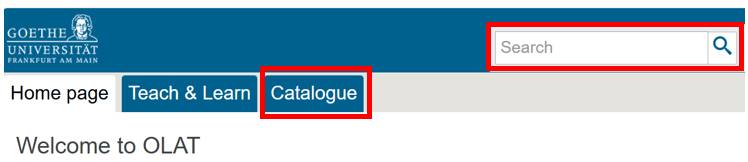
Some courses can be found by the Catalogue tab. Browse through the catalogue by clicking through the paths.
If you cannot find the course you are looking for, it may not have been created yet or may not habe been set to Public - visible to registered users yet.
Click on the course you wish to enrol in. If your
lecturer has not placed any enrolment restrictions (e.g. password protection),
you may find the Enrolment course element on the left side of the
screen. Click on Enrol.
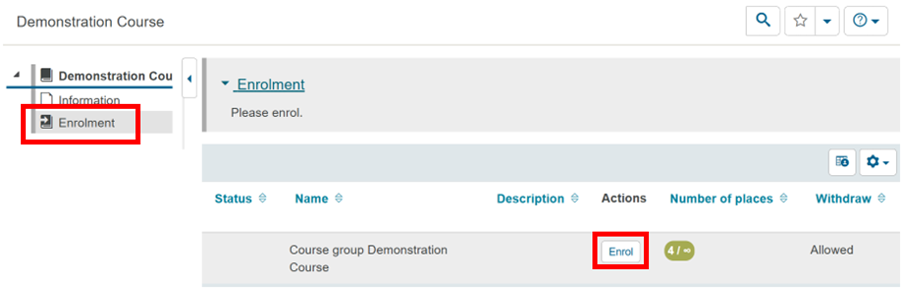
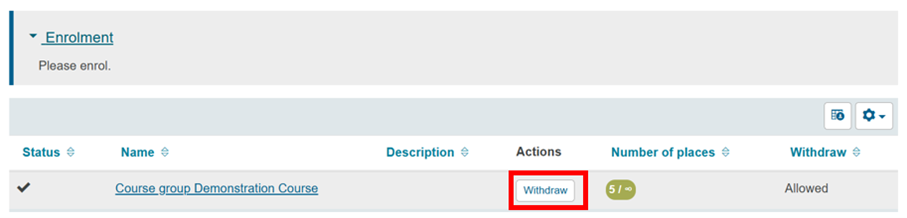
To withdraw from the course, click on the Withdraw option, if available.
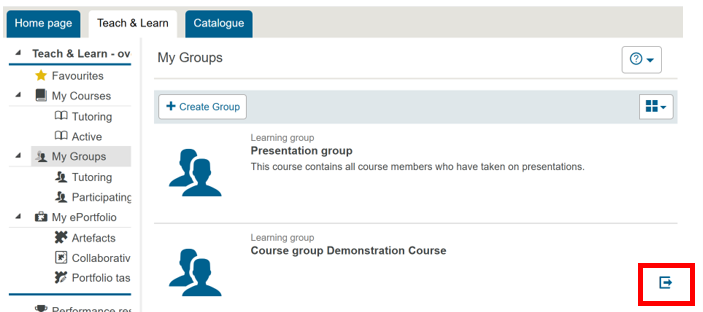
Another way to withdraw from a course group can be found under Teach & Learn. Click on the icon to the far right of the course group, if available:
If none of these options are available, please contact
the course owner to be removed from the course.
Here you can find a step-by-step guide: How do I enrol? How do I withdraw?
Courses and course content
You can find your courses in the tab Teach & Learn under My Courses.
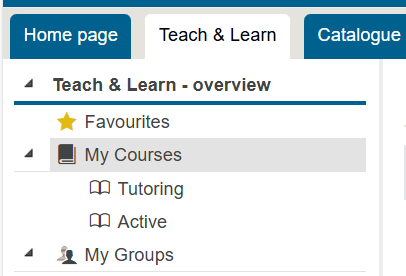
If you have marked the course as a favourite, you will also find it under Favourites.
If you added the portlet Attending on the home page (using + Add portlet), you will also find the course there.
There are different ways to upload files in an OLAT course:
- Regular folders: If your course's lecturer chooses to allow uploads by participants in a regular folder, you will see a button with an arrow pointing upwards. Click this button to upload your document.
- Task folders: Task folders belong to an OLAT task that your lecturer asks you to solve. Depending on the task's configuration, you may need to select a task before you can upload a document via the Upload button.
Please note that OLAT poses restrictions on the types of files you may upload.
f you have subscribed to course elements, these subscriptions will remain active even after you have left the courses.
You can manage your subscriptions (and unsubscribe) in your news area.
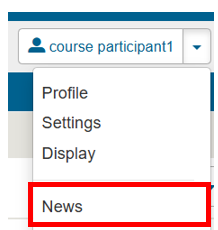
Open the dropdown menu next to your name and choose News.
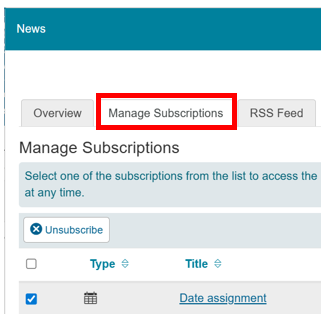
The tab Manage Subscriptions shows your active subscriptions.
To unsubscribe, check the box in front of that subscription and hit the button Unsubscribe.
Working Groups
To create a working group, click the tab Teach & Learn, then click Teach & Learn - overview and then the button Create a group.
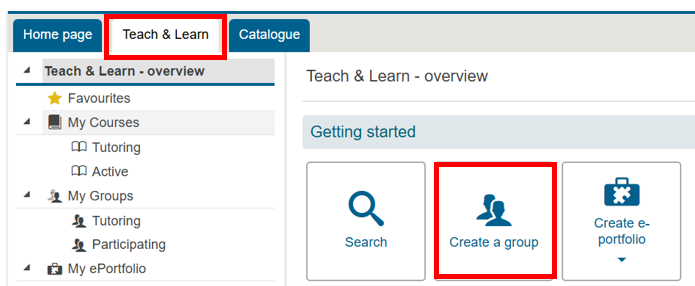
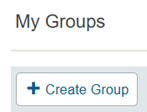
You can also create a working group by clicking on My Groups and then on Create Group.
More information on working groups can be found here: Working groups in OLAT.